Reorder Reports
Learn how to generate reports based off of the quantity on hand or sales history
Video Tutorial
Login to Manager
Login to the manager side in LiquorTech. You will need your password or smart card to access this level.

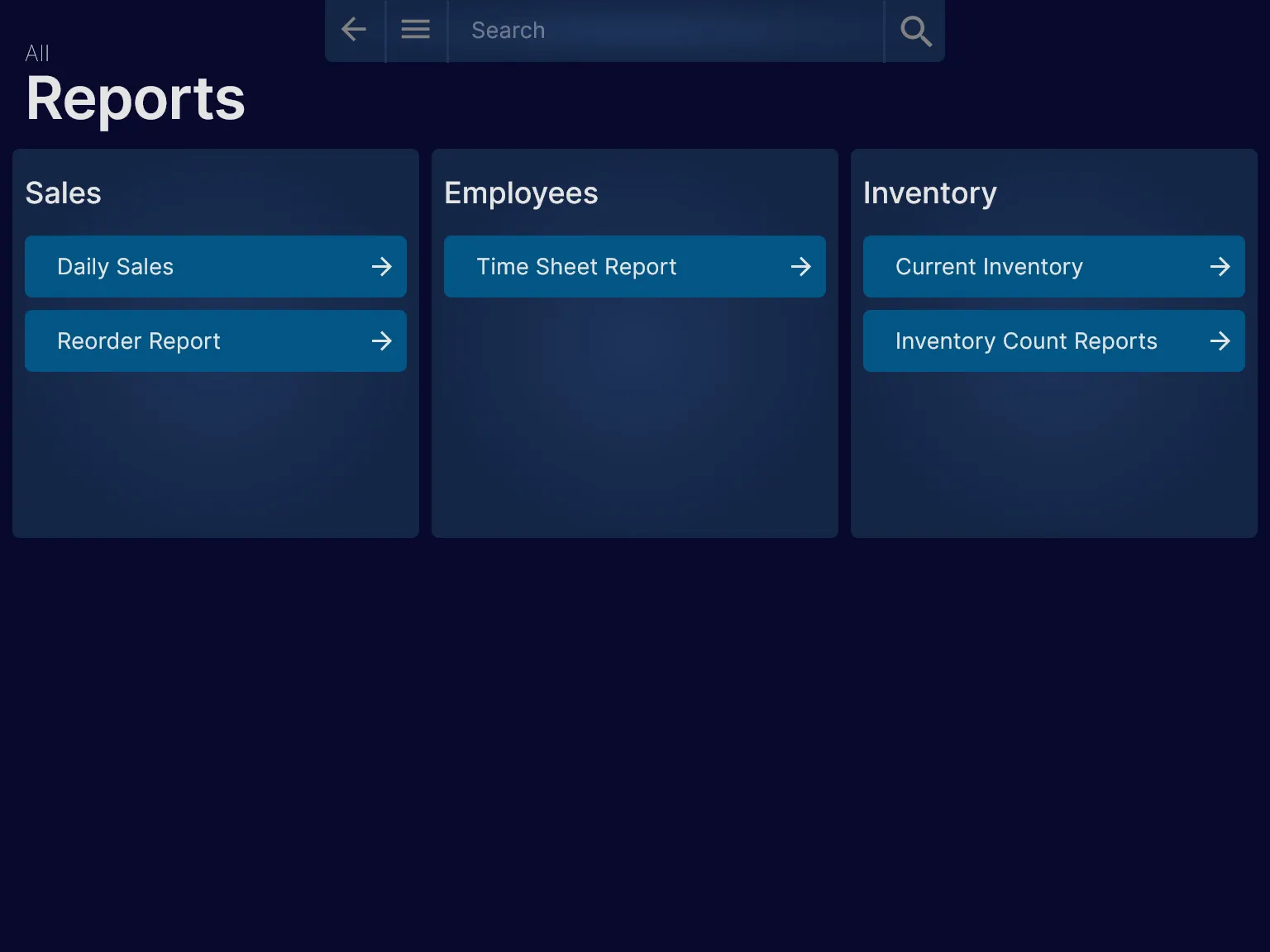
Click on the Reports button under Analytics in the middle box on the bottom row.
Click on the Reorder Reports button in the first box on the right.
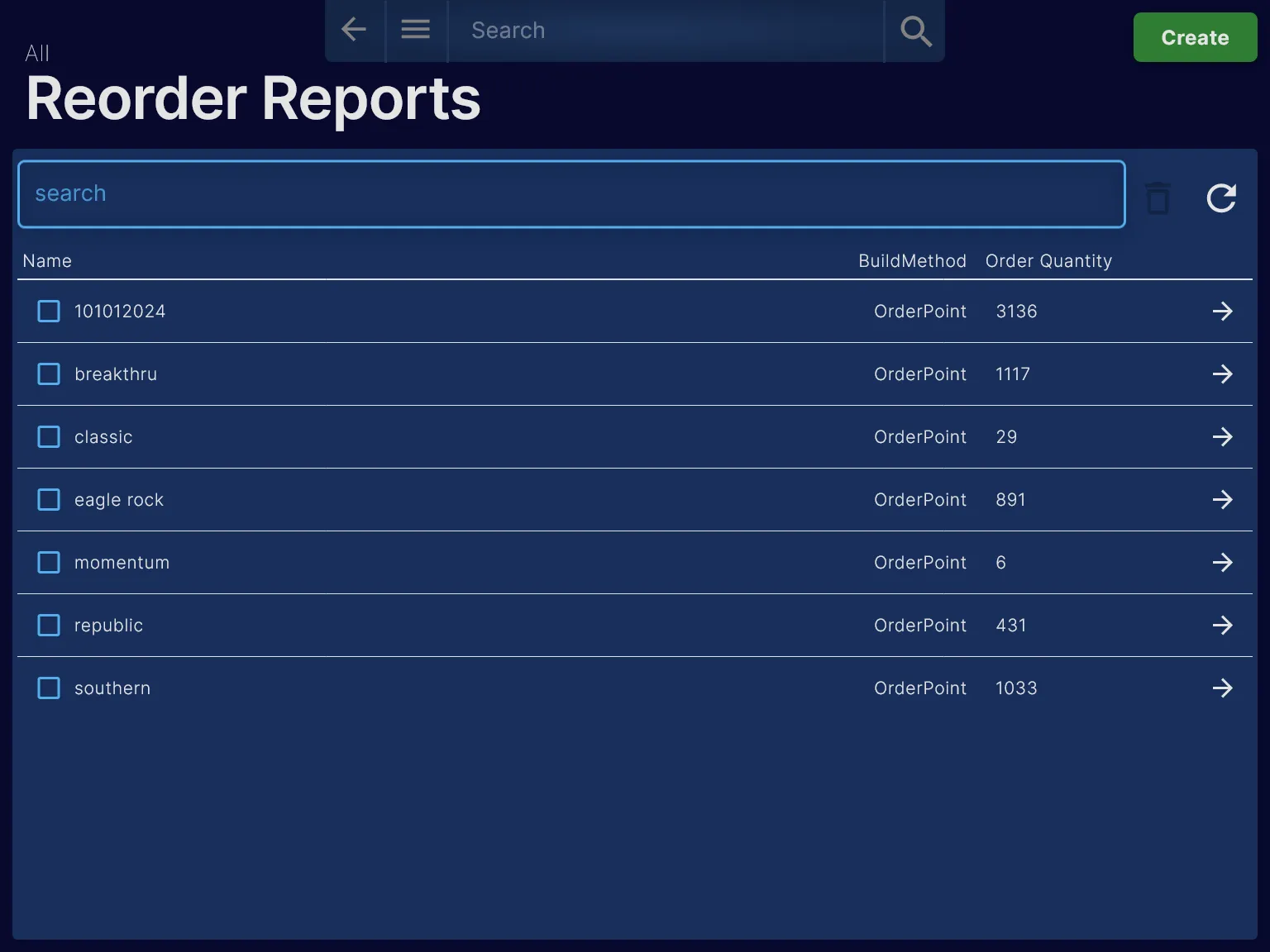
View Existing Reports
To Create a new report click on the green Create button on the top right of the screen.
Create New Report
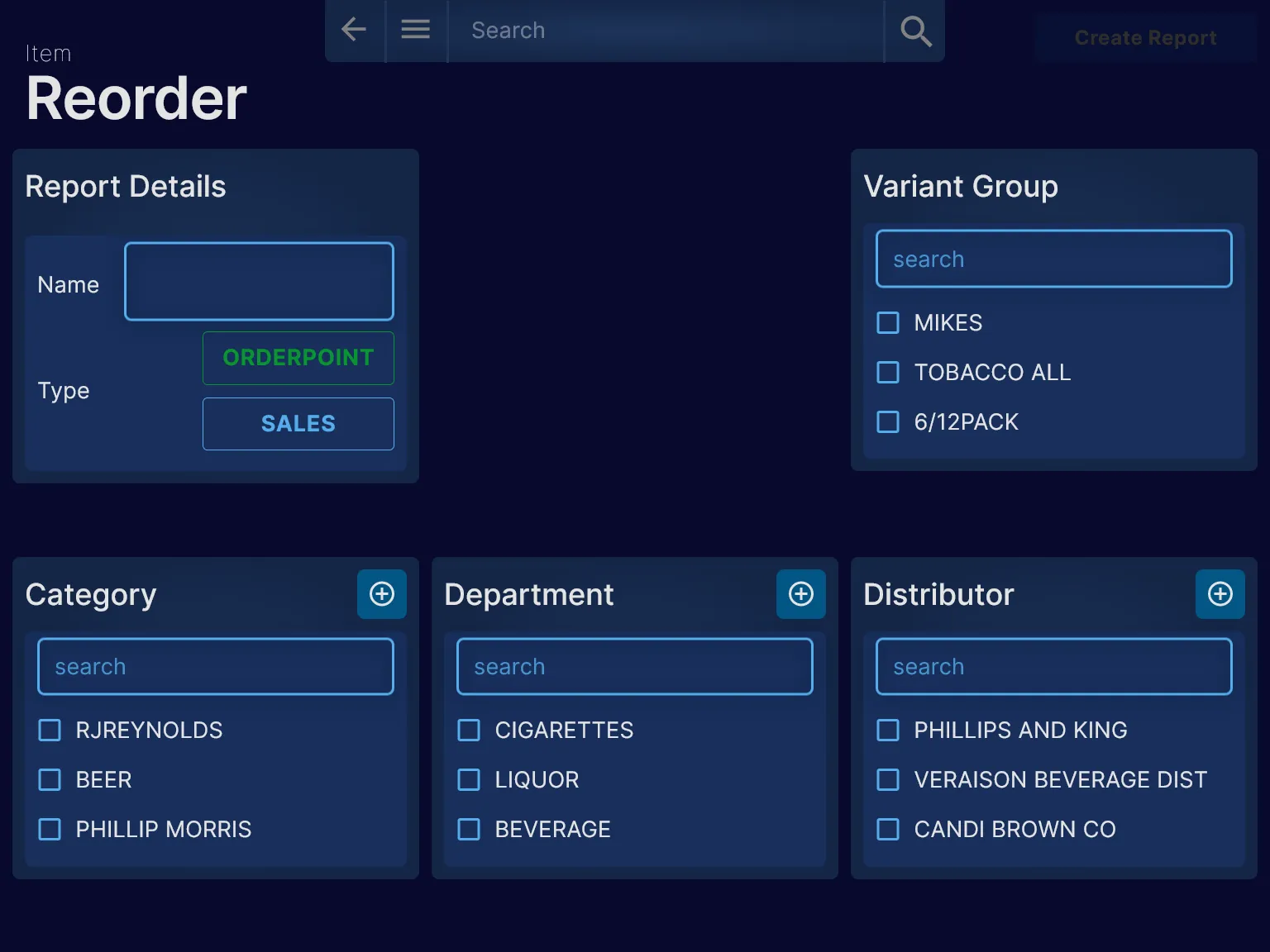
There are three items which need to be given to create a new reorder report
- A Name
- A Type
OrderPointcreate report fromorder pointsor,Salescreate report from sales history
- A group
Categoryor,Departmentor,Distributoror,Variant Group
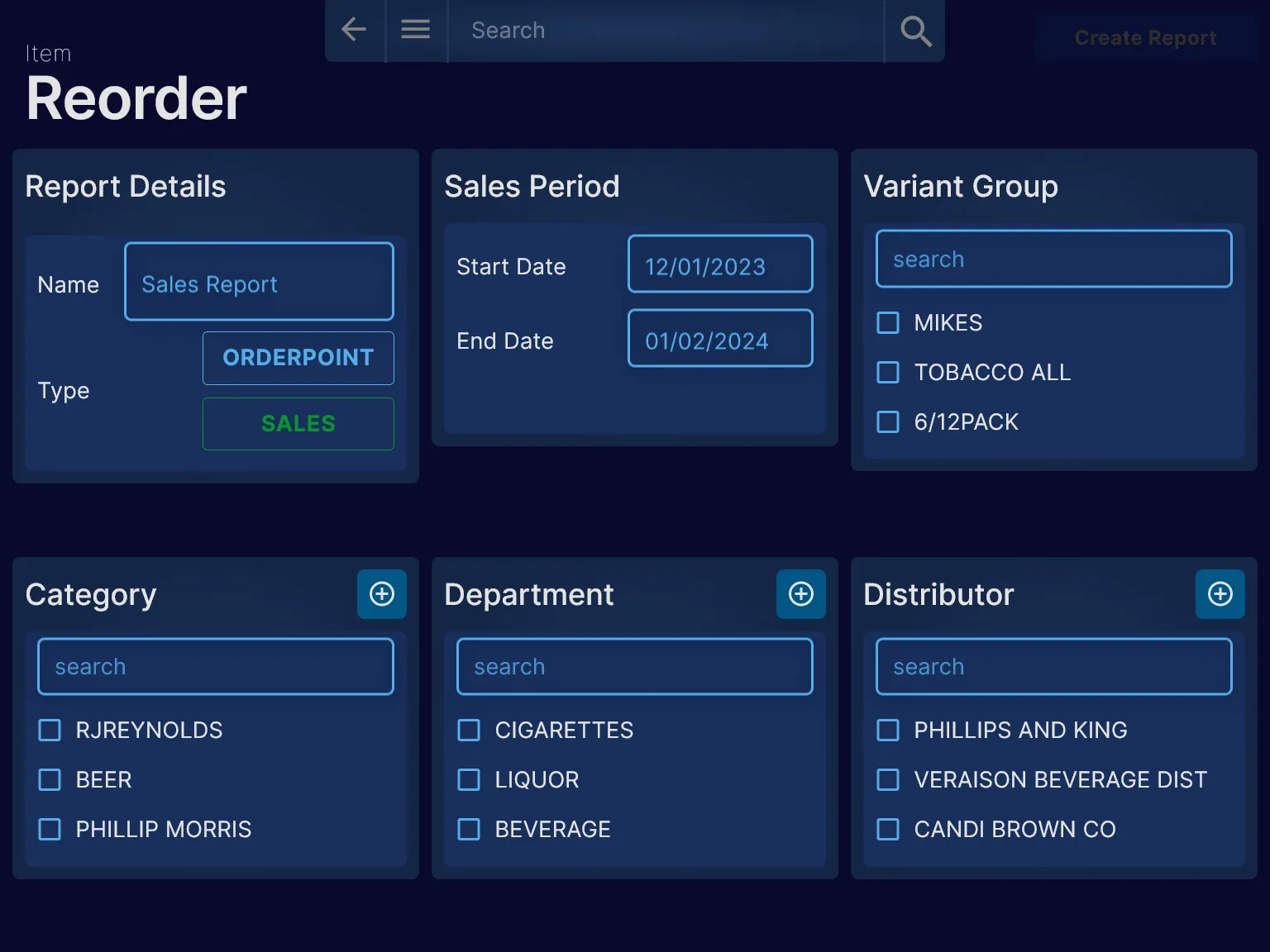
Sales Report
A sales report will give you the amount of sales in a given time frame.
Under type in the first box on the right, click the Sales button.
A New box will appear in the middle on the first row to set the sales period. You may set the sales period to any date in the past.
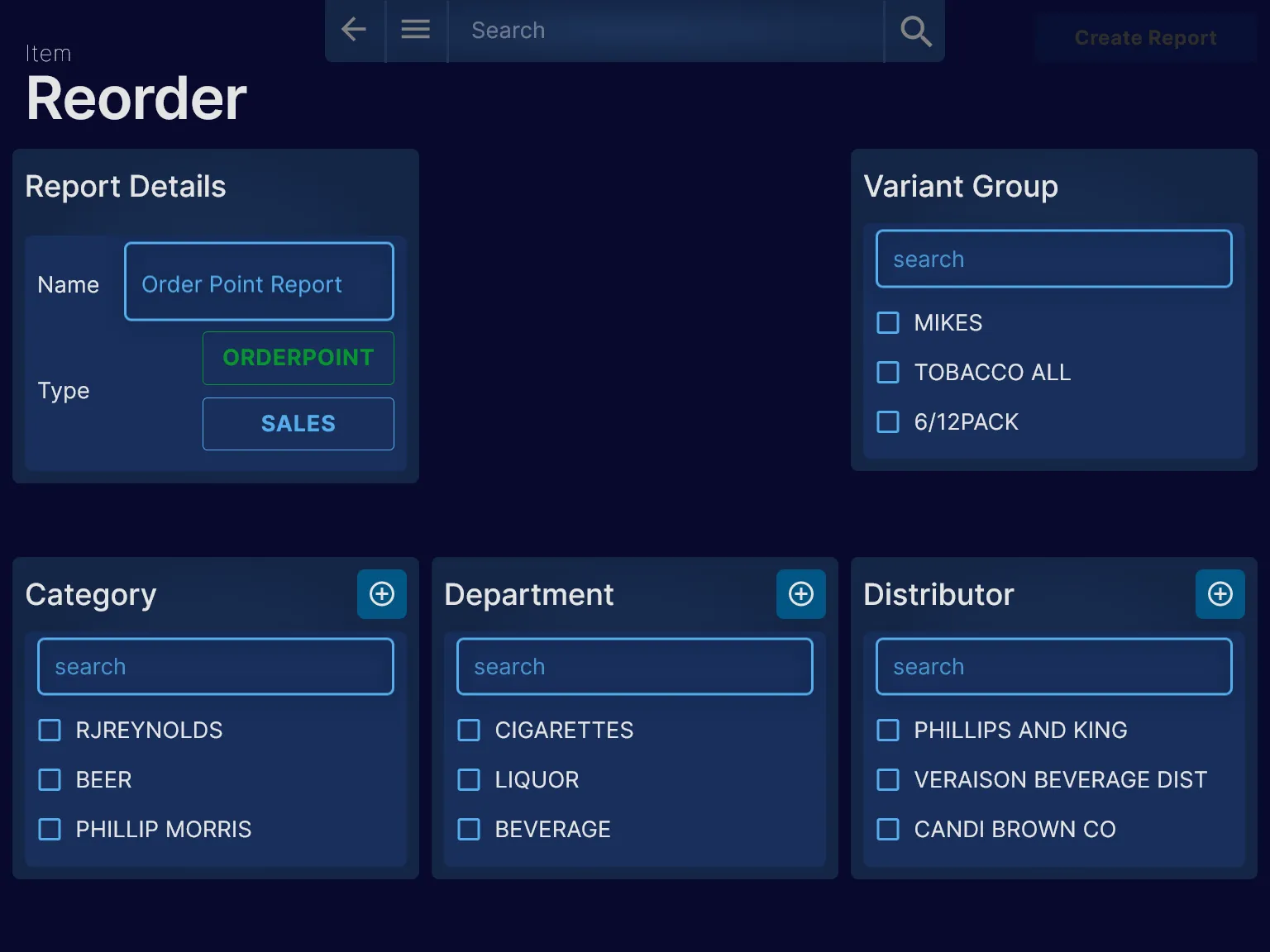
OrderPoint Report
A order point report will give you the variants in the group(s) selected that have a quantity on hand less than or equal to the order point
Order point reports are the default reorder reports.
Select Groups
To select a group, simply click on the check box of the group you wish to select. If you do not see your group, you may search to bring it into view.
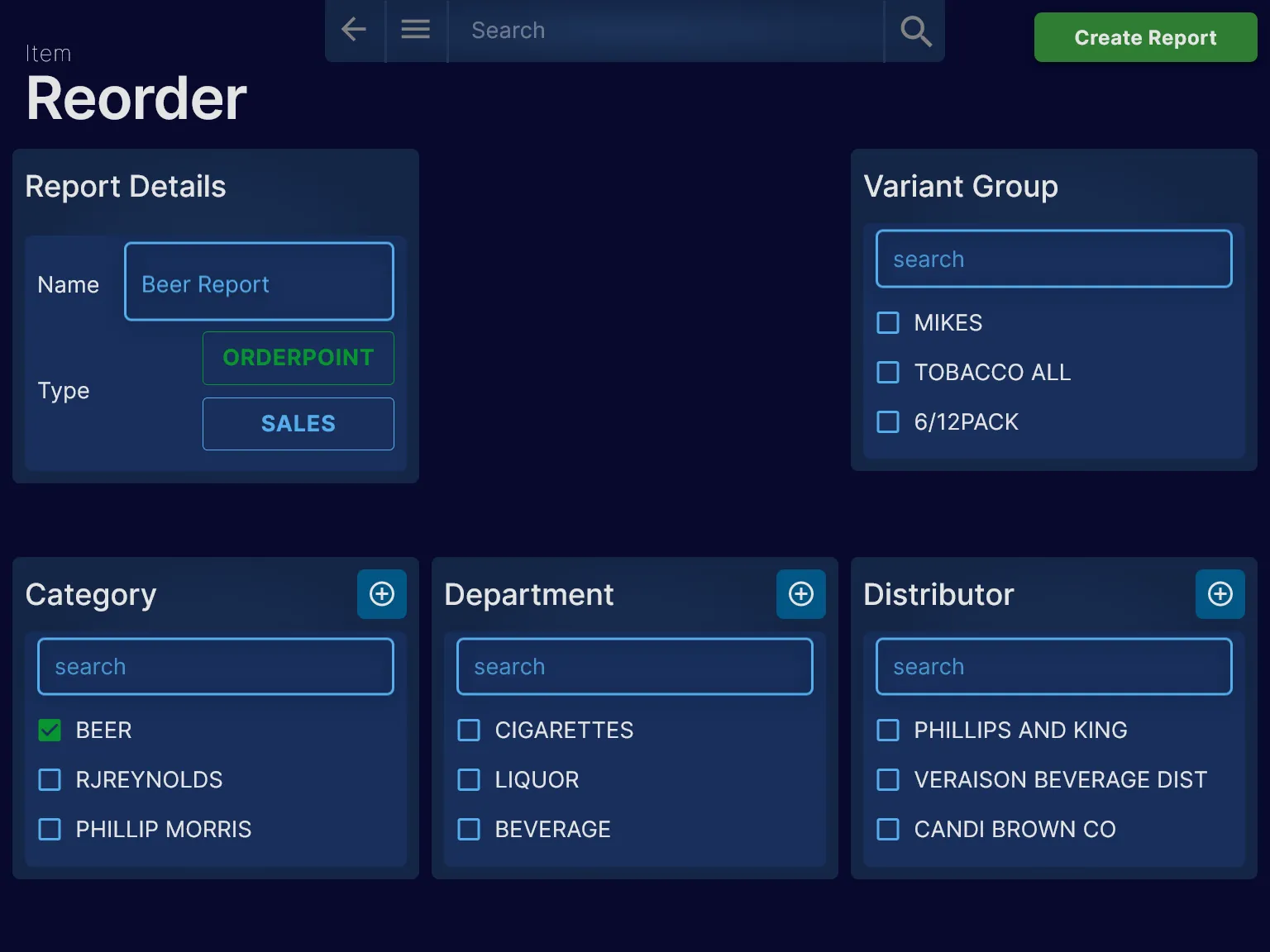
Once you are satisfied with your report criteria, click on the Create Report button on the top right of the screen.
Report Overview
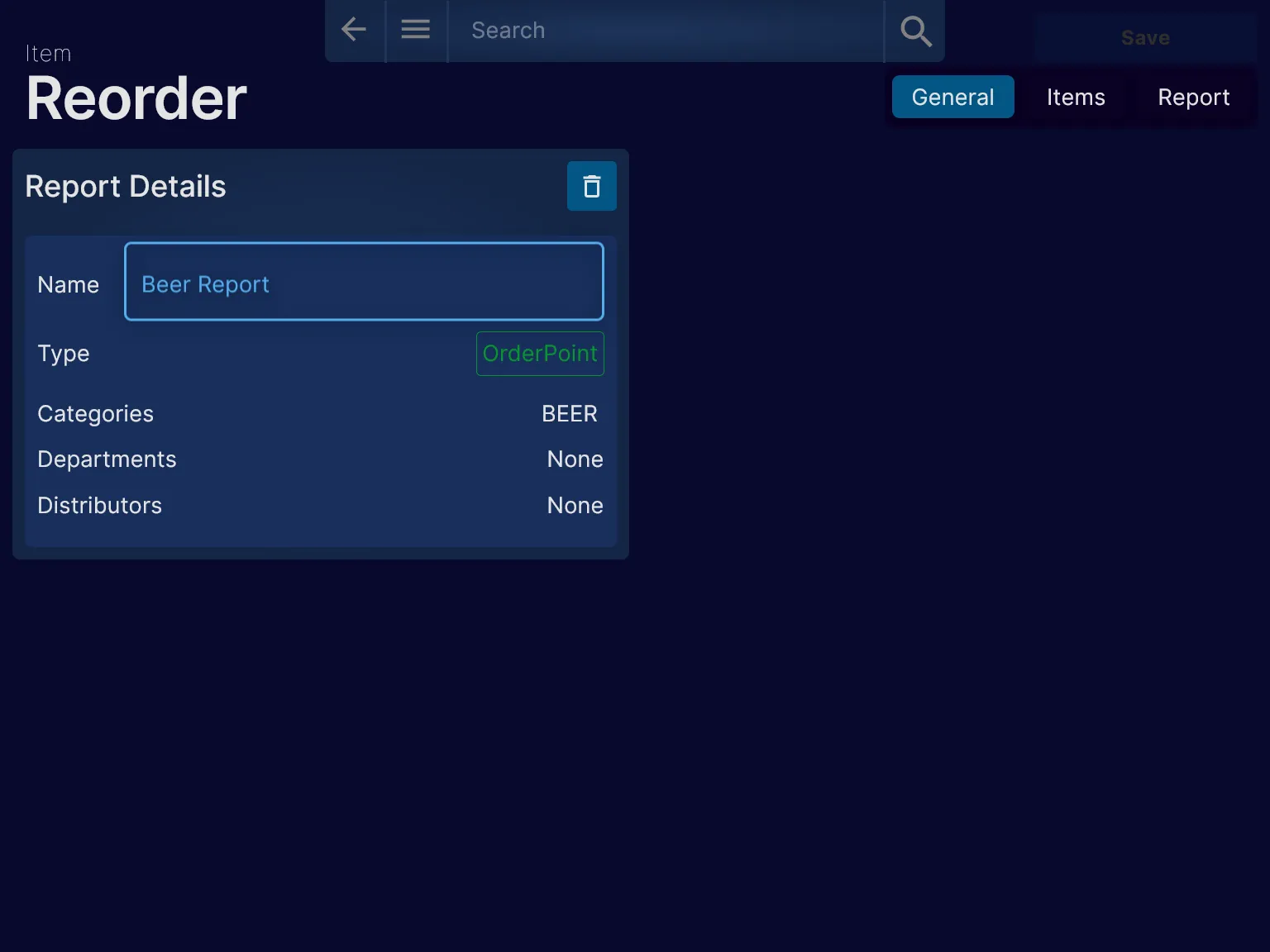
Items
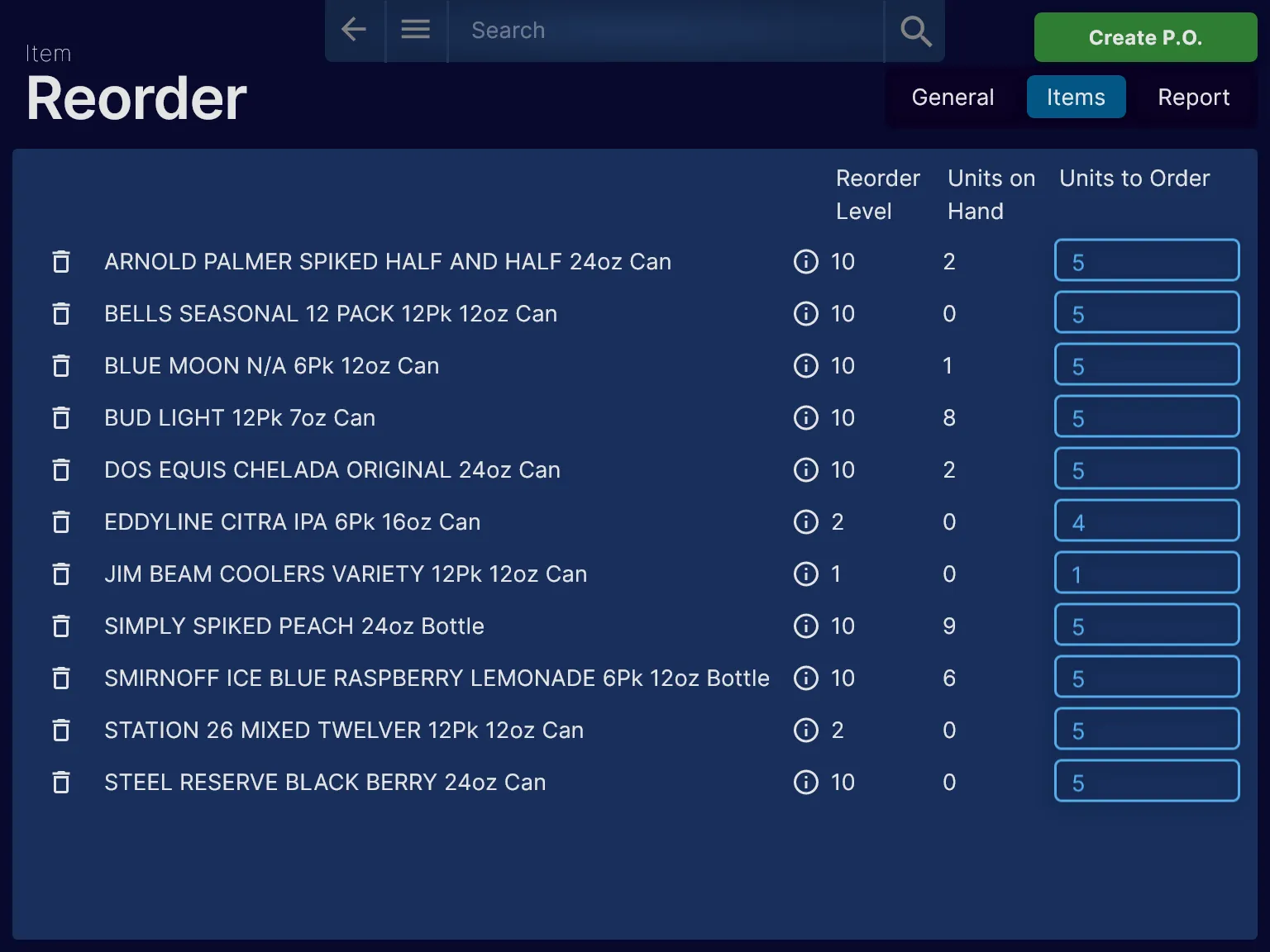
Navigate to items by pressing the items tab on the right
Each line has three functionalities
-
Press to delete the line from the report. This will also update the printable report.
-
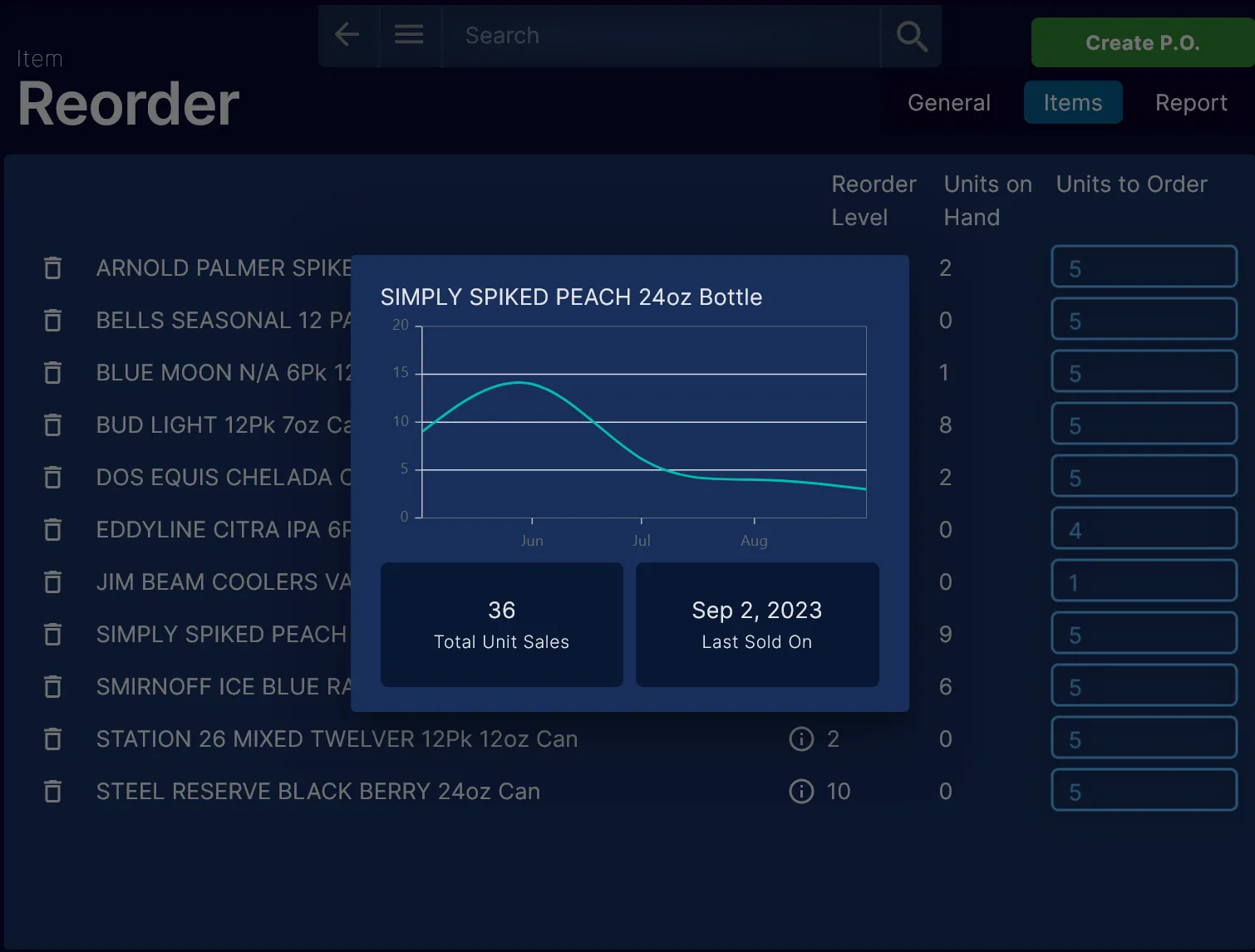
Press to see the sales history
- Update the units to order on the right side
Past Sales
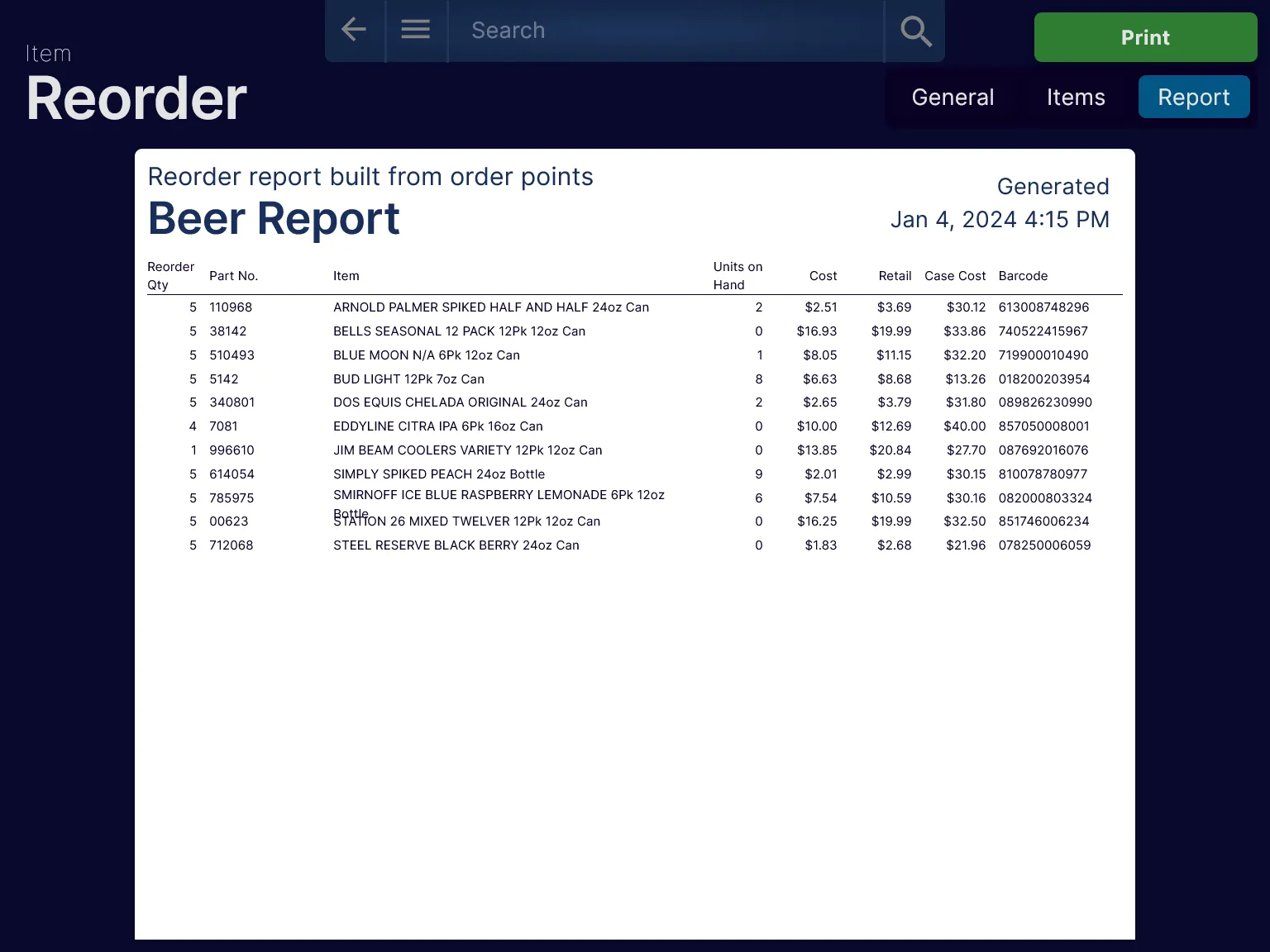
Report
Navigate to the report by pressing the report tab on the right
You can print this file by pressing the Print Button on the top right
Create Purchase Order
Navigate to the report by pressing the items tab on the right
You can create new purchase order by pressing the Create P.O Button on the top right. The name of the newly created purchase order will be name of the report.
Support
Need some extra assistance? Contact support
support@lajoy.tech